In this article, we will show you how to use Feedbucket
Step 1 — Open the Feedbucket Widget
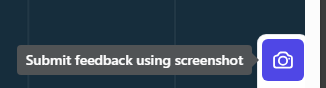
Look for the Feedbucket button on the page (usually a small icon on the side or bottom of the screen). Click it to open the feedback toolbar.
Step 2 — Click 'Submit Feedback Using Screenshot'
In the toolbar, click the camera icon or the 'Submit feedback using screenshot' button. This activates screenshot mode.
Step 3 — Highlight the Area You Want to Report
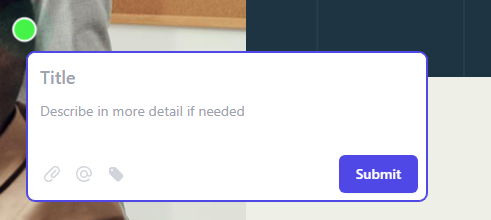
Your cursor will change to allow you to click and drag over the area of the page you want to report. Select the specific section or element that has the issue.
? Tip: Be as precise as possible — selecting just the problem area helps our team understand exactly what needs attention. |
Step 4 — Annotate Using the Drawing Toolbar
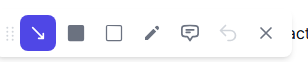
Once your screenshot is taken, a toolbar will appear with annotation tools:
- Arrow — draw an arrow pointing to a specific element
- Rectangle — draw a box around an area
- Pen — freehand drawing
- Comment — add a text comment pin
- Undo / Delete — remove annotations
Step 5 — Submit
Click the Submit button. Your feedback — including the annotated screenshot and all form details — will be sent directly to our team.
? Tip: Repeat this process for each separate issue on the website. Each piece of feedback should be submitted individually. |
Tips for Good Feedback
- One issue per submission — submit separate feedback items for separate problems.
- Use screenshots for visual issues — layout problems, text errors, broken images.
- Use video for interactive issues — forms not working, animations breaking, multi-step flows.
- Always fill in the Title — make it descriptive, e.g. 'Footer logo misaligned on mobile'.
- Attach supporting files if useful — reference designs, screenshots from another device, etc.
Was this article helpful?
That’s Great!
Thank you for your feedback
Sorry! We couldn't be helpful
Thank you for your feedback
Feedback sent
We appreciate your effort and will try to fix the article